
iPay logo

Login

Help Center

Manage Profile

Manage Profile

In this article

Manage Your Profile

You can view and update your account information from the My Account section in the Client Portal.

Steps

  1. Log in to the Client Portal.
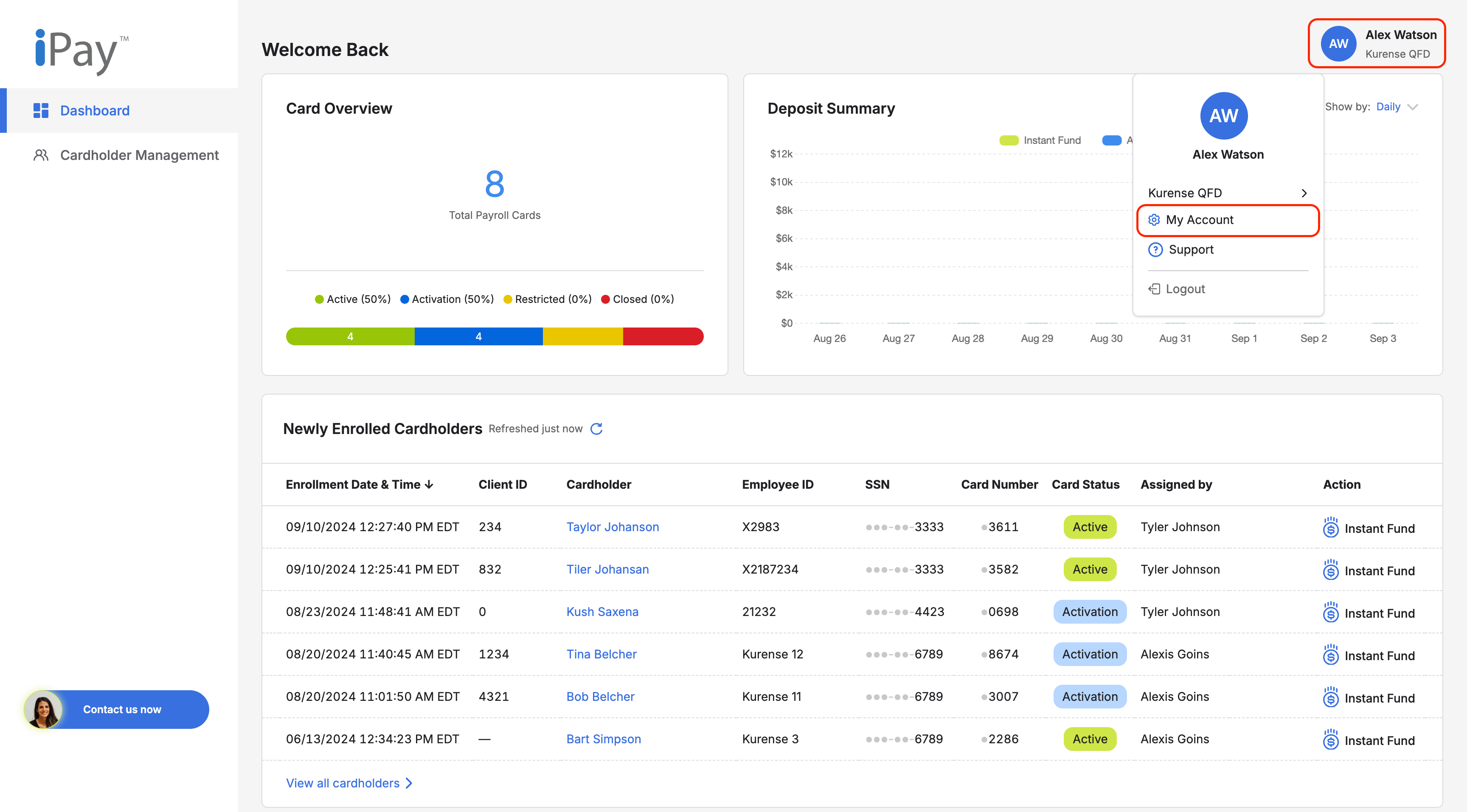
  1. Select your profile menu in the top-right corner of the Client Portal.
  1. Open the Account Info tab.
  1. Review your account details, including your name, email, title, organization, and time zone.
  1. Update any editable fields, such as your name, title, or time zone.
  1. Select Save to apply your changes.

Note

Some account details, such as your email or organization, may not be editable. If you need to update locked information, contact support or your organization administrator.

Change Your Password

You can change your password from the My Account section in the Client Portal.

Steps

  1. Select your profile menu in the top-right corner of the Client Portal.
  1. Select My Account.
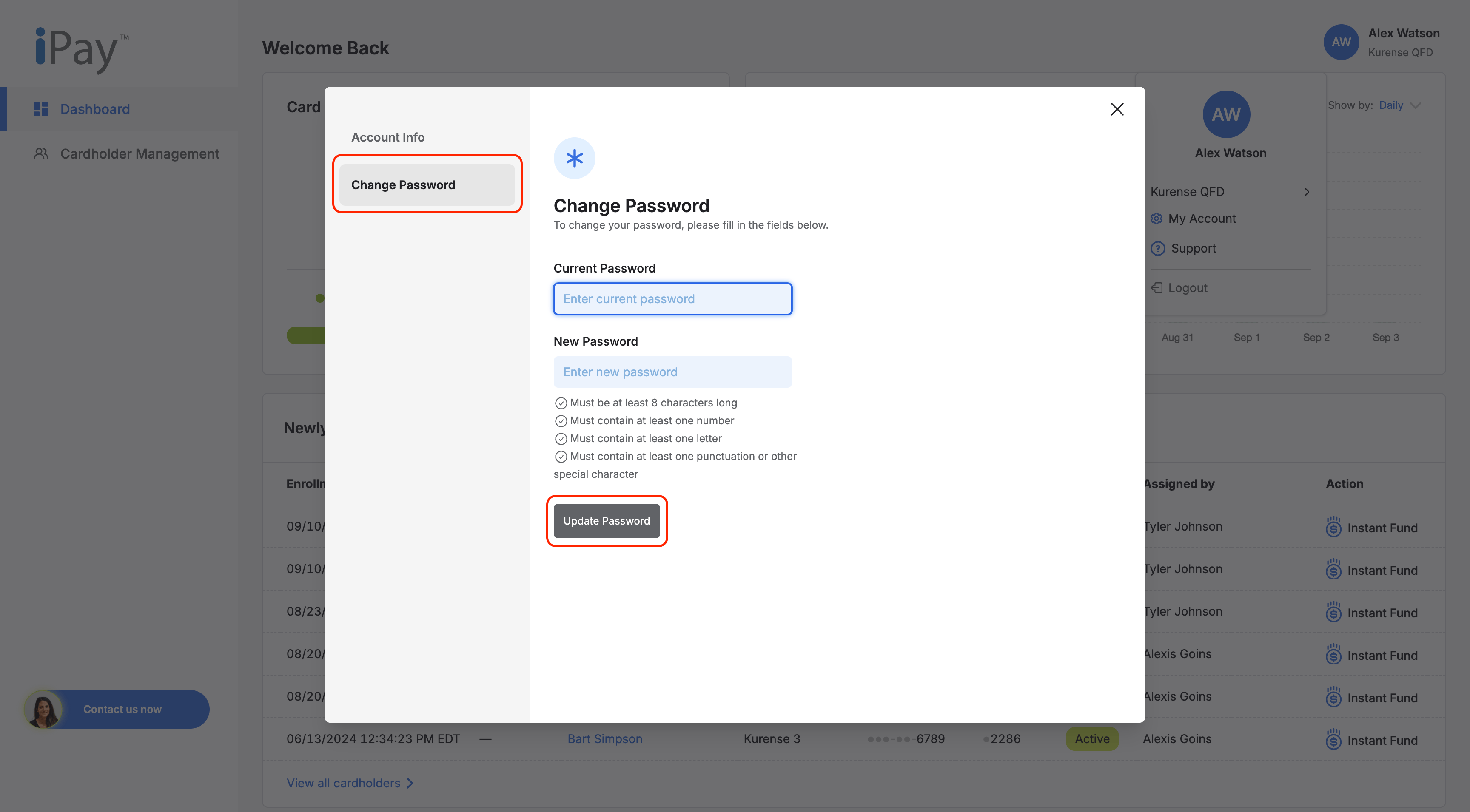
  1. Open the Change Password tab.
  1. Enter your current password.
  1. Enter your new password.
  1. Make sure the new password meets all password requirements.
  1. Select Update Password.

Note

Use a strong, unique password that you do not use for other accounts.

Change Organization

If you have access to more than one organization, you can switch organizations from your profile menu.

Note

The organizations available to you depend on your user permissions. If you do not see the organization you need, contact your organization administrator or support.

Steps

  1. Select your profile menu in the top-right corner of the Client Portal.
  1. Select your current organization name.
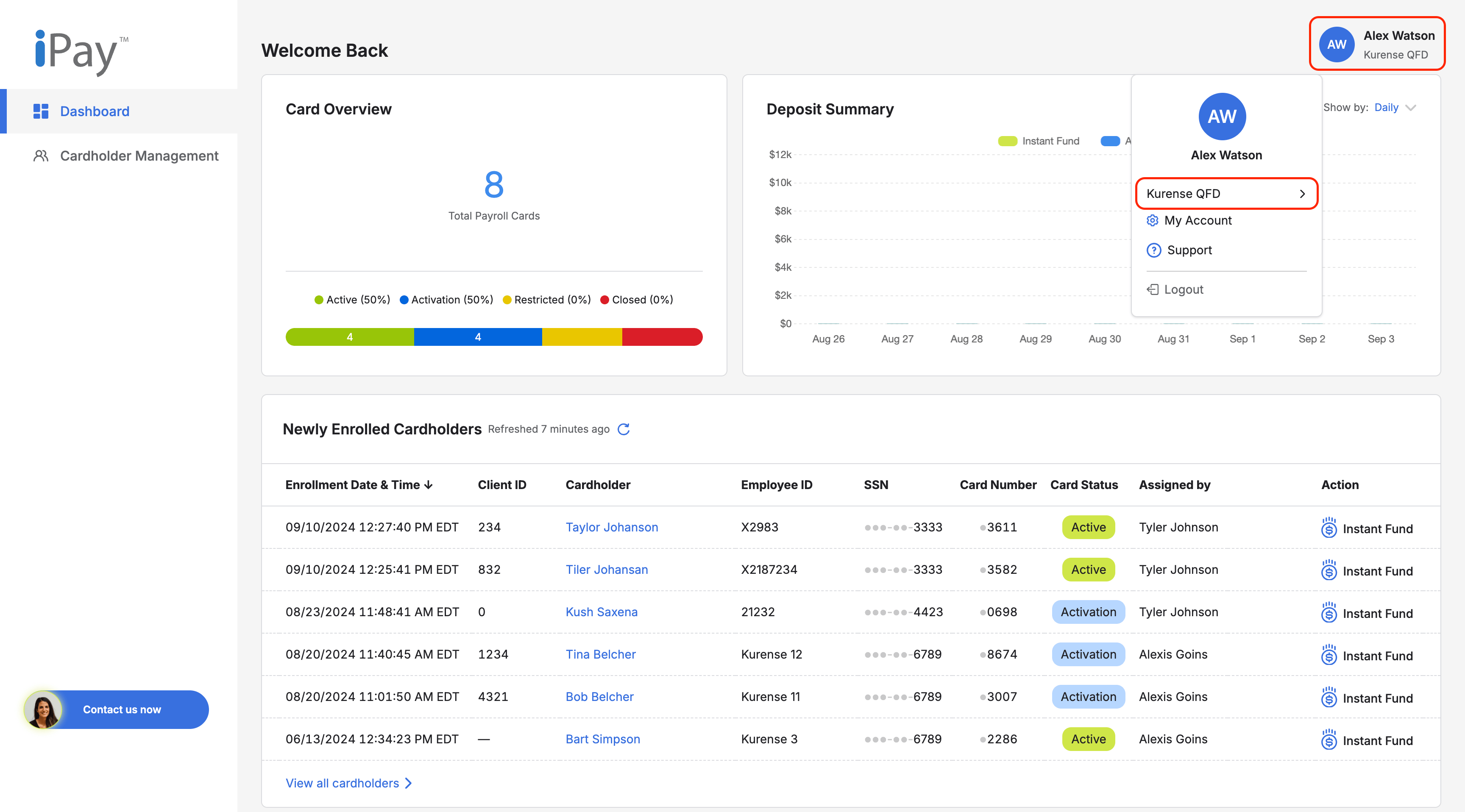
  1. Choose the organization you want to view.
  1. Confirm that the selected organization is now displayed in the Client Portal.

Still Need help?

We're here for you! For extra support, just click here!

Contact Us Now

iPay logo

Powered by

Kurense logo

Client Portal Help Center

Login

Help Center

Manage Profile

Manage Profile

Manage Your Profile

You can view and update your account information from the My Account section in the Client Portal.

Steps

  1. Log in to the Client Portal.
  1. Select your profile menu in the top-right corner of the Client Portal.
  1. Open the Account Info tab.
  1. Review your account details, including your name, email, title, organization, and time zone.
  1. Update any editable fields, such as your name, title, or time zone.
  1. Select Save to apply your changes.

Note

Some account details, such as your email or organization, may not be editable. If you need to update locked information, contact support or your organization administrator.

Change Your Password

You can change your password from the My Account section in the Client Portal.

Steps

  1. Select your profile menu in the top-right corner of the Client Portal.
  1. Select My Account.
  1. Open the Change Password tab.
  1. Enter your current password.
  1. Enter your new password.
  1. Make sure the new password meets all password requirements.
  1. Select Update Password.

Note

Use a strong, unique password that you do not use for other accounts.

Change Organization

If you have access to more than one organization, you can switch organizations from your profile menu.

Note

The organizations available to you depend on your user permissions. If you do not see the organization you need, contact your organization administrator or support.

Steps

  1. Select your profile menu in the top-right corner of the Client Portal.
  1. Select your current organization name.
  1. Choose the organization you want to view.
  1. Confirm that the selected organization is now displayed in the Client Portal.

Still Need help?

We're here for you! For extra support, just click here!

Contact Us Now

iPay logo

Powered by

Kurense logo

Client Portal Help Center

Login

Help Center

Manage Profile

Manage Profile

Manage Your Profile

You can view and update your account information from the My Account section in the Client Portal.

Steps

  1. Log in to the Client Portal.
  1. Select your profile menu in the top-right corner of the Client Portal.
  1. Open the Account Info tab.
  1. Review your account details, including your name, email, title, organization, and time zone.
  1. Update any editable fields, such as your name, title, or time zone.
  1. Select Save to apply your changes.

Note

Some account details, such as your email or organization, may not be editable. If you need to update locked information, contact support or your organization administrator.

Change Your Password

You can change your password from the My Account section in the Client Portal.

Steps

  1. Select your profile menu in the top-right corner of the Client Portal.
  1. Select My Account.
  1. Open the Change Password tab.
  1. Enter your current password.
  1. Enter your new password.
  1. Make sure the new password meets all password requirements.
  1. Select Update Password.

Note

Use a strong, unique password that you do not use for other accounts.

Change Organization

If you have access to more than one organization, you can switch organizations from your profile menu.

Steps

  1. Select your profile menu in the top-right corner of the Client Portal.
  1. Select your current organization name.
  1. Choose the organization you want to view.
  1. Confirm that the selected organization is now displayed in the Client Portal.

Note

The organizations available to you depend on your user permissions. If you do not see the organization you need, contact your organization administrator or support.

Still Need help?

We're here for you! For extra support, just click here!

Contact Us Now