
iPay logo

Login

Help Center

Manage Cardholders

Manage Cardholders

In this article

View Cardholders

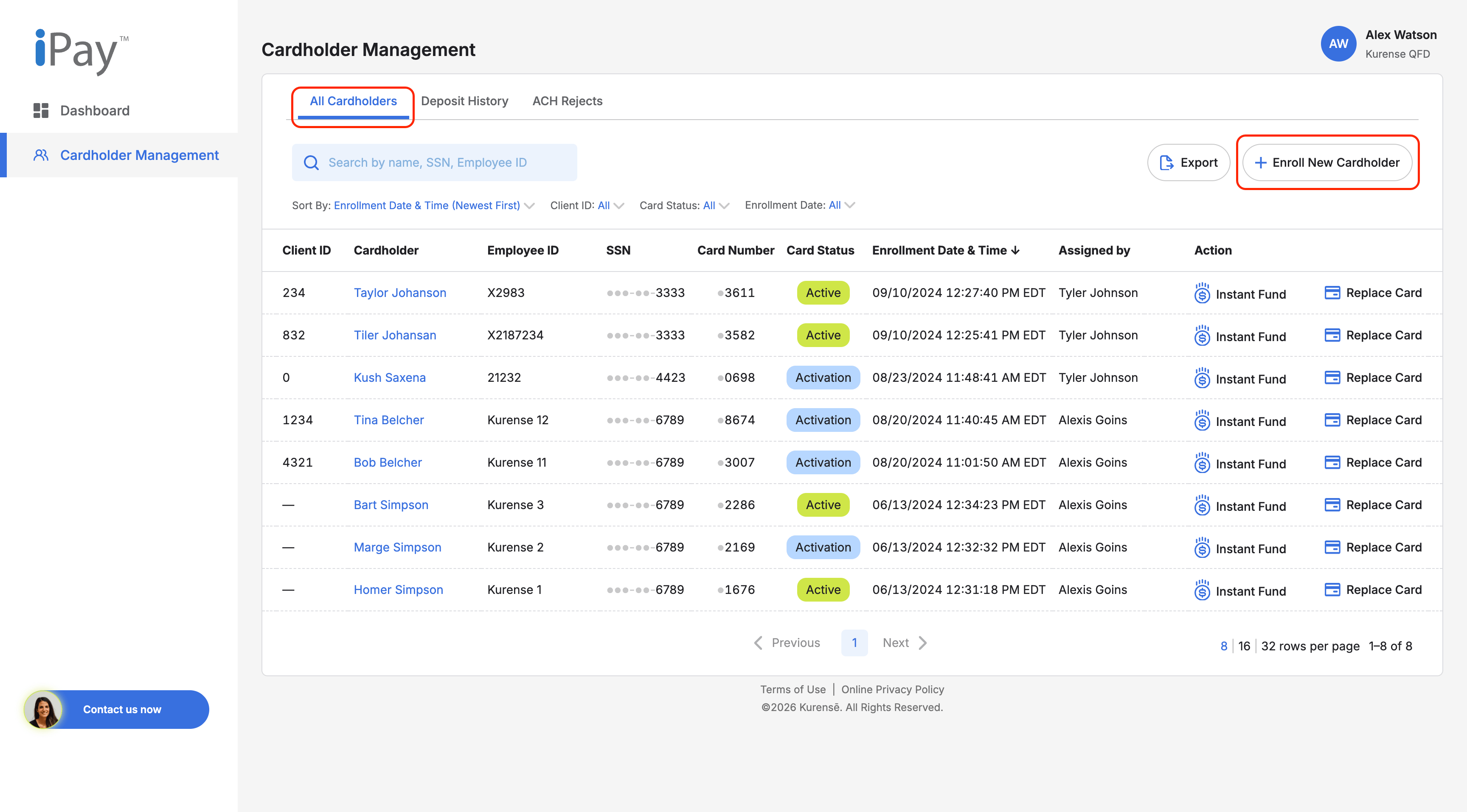
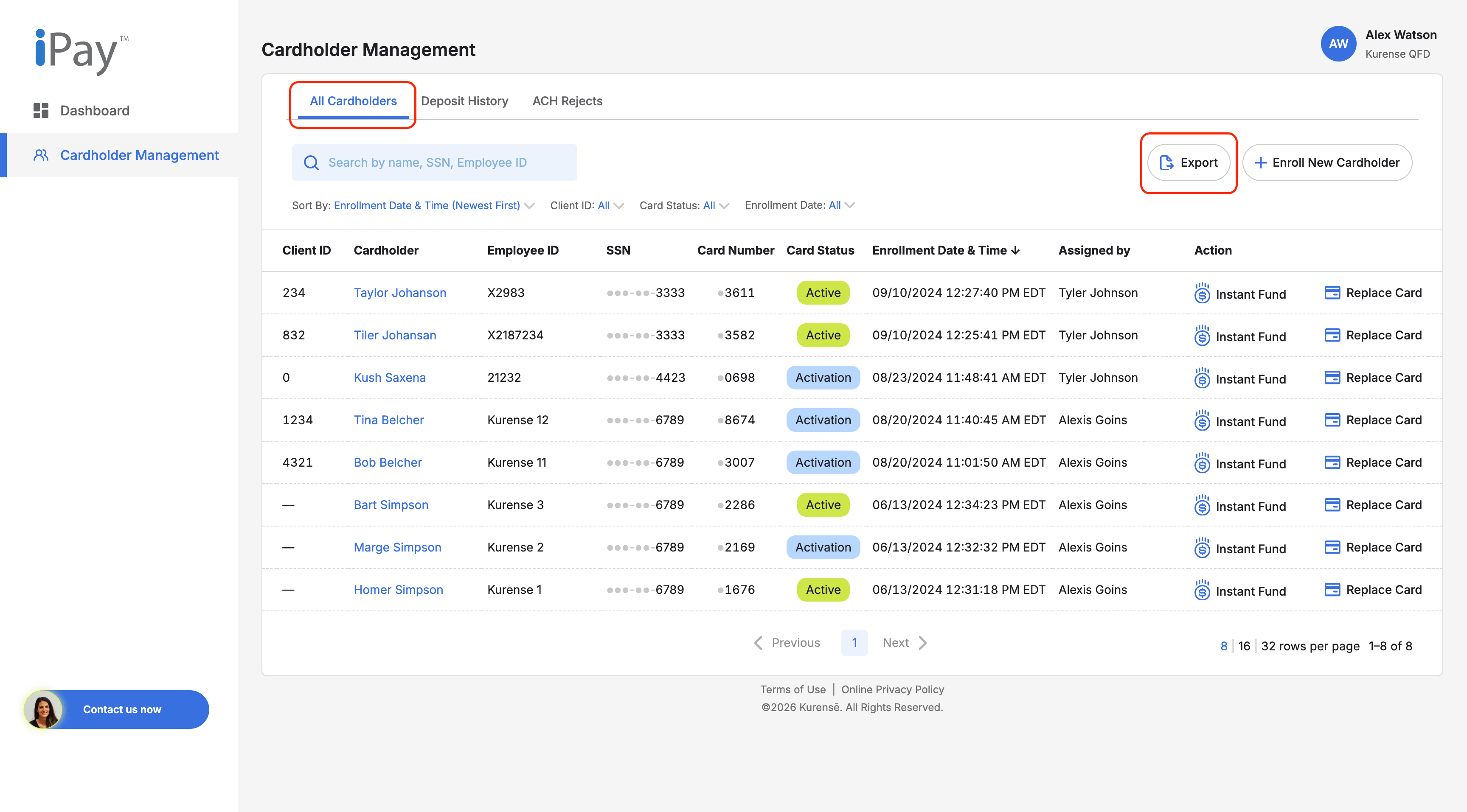
The All Cardholders page lets you view and manage cardholders connected to your organization.

Steps

  1. Log in to the Client Portal.
  1. Go to Cardholder Management.
  1. Select the All Cardholders tab.
  1. Review the list of available cardholders.
  1. Use search, filters, or sorting to narrow the list. You can search by cardholder name, employee ID, SSN or last four digits, or card number.

Note

The cardholders you can view may depend on your organization and user permissions.

View Cardholder Details

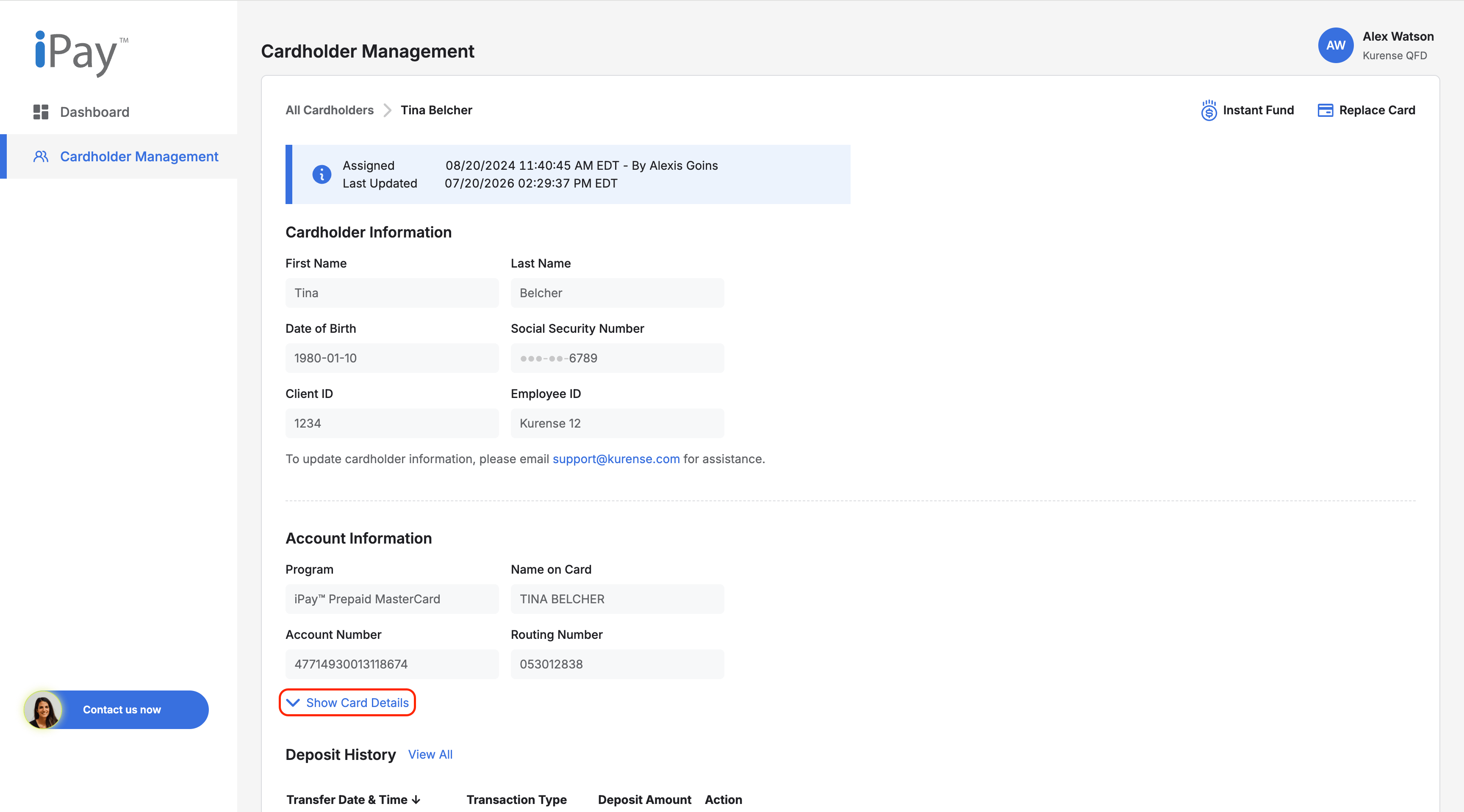
A cardholder profile gives you access to key cardholder information, account details, and available actions.

Steps

  1. Go to Cardholder Management.
  1. Select the All Cardholders tab.
  1. Search for the cardholder.
  1. Select the cardholder’s name.
  1. Review the cardholder profile to view cardholder information, account information, available actions, and deposit history, if available.

Note

Some sensitive information may be masked or require verification before it can be viewed.

Enroll New Cardholder

Steps

  1. Go to Cardholder Management.
  1. Select the All Cardholders tab.
  1. Select Enroll New Cardholder.
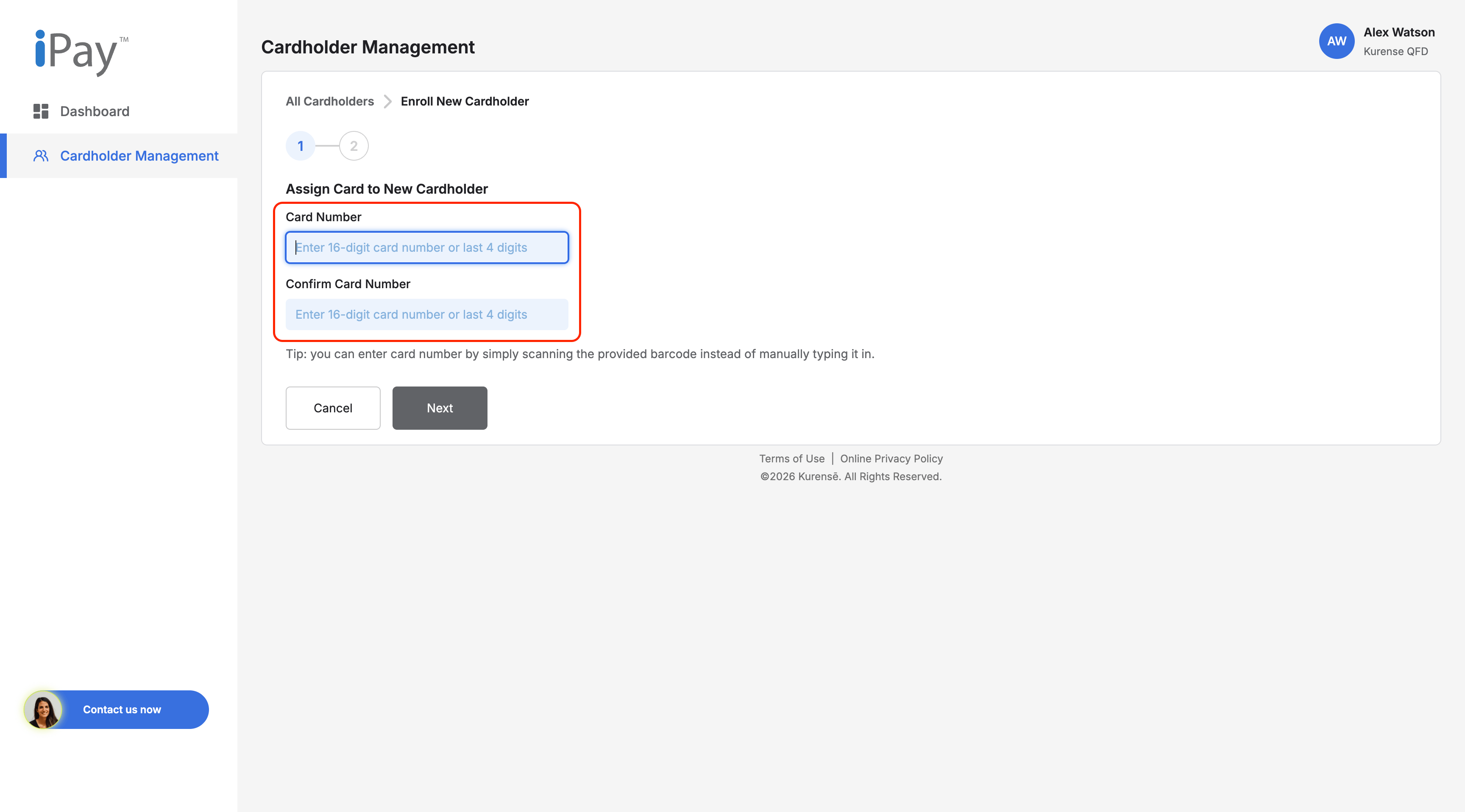
  1. Assign a card by entering and confirming either the 16-digit card number or the last 4 digits of the card number.You can also scan the card’s barcode instead of typing the number manually.
  1. Select Next.
  1. Enter the required cardholder information.
  1. Review all details to make sure they are correct.
  1. Submit the enrollment.

Note

Manually enrolled cardholders may not appear immediately in dashboard, report, or export views. Availability may depend on data refresh timing.

Use the manual enrollment workflow to assign a card and add a new cardholder directly in the Client Portal.

View Cardholder Card Information

Card information may be available in the cardholder profile. For security, card details are masked by default.

Note

Only view sensitive card information when it is needed for an authorized business purpose.

Steps

  1. Open the cardholder profile.
  1. Go to the Account Information section.
  1. Select Show Card Details.
  1. Review the card information.

Replace Card

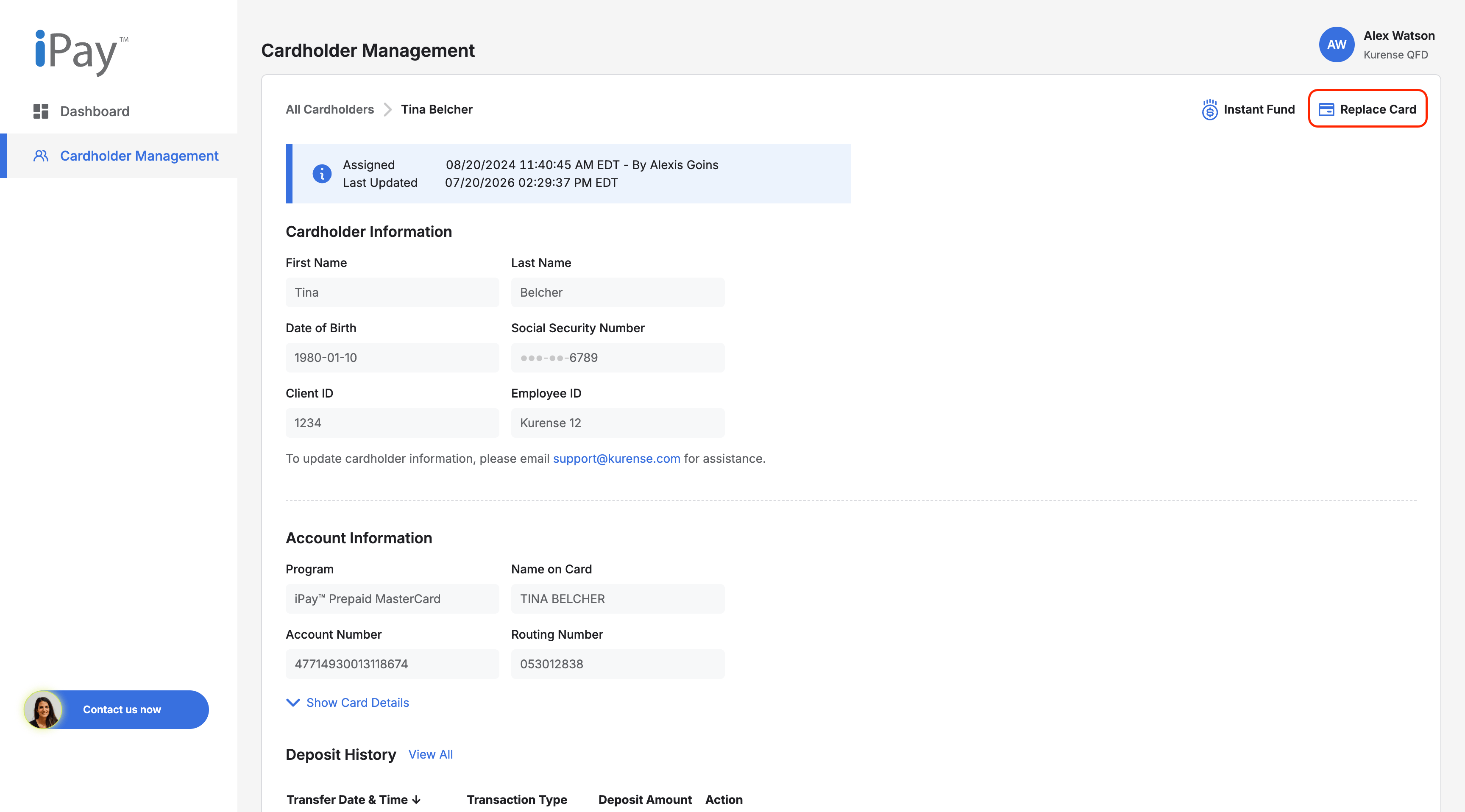
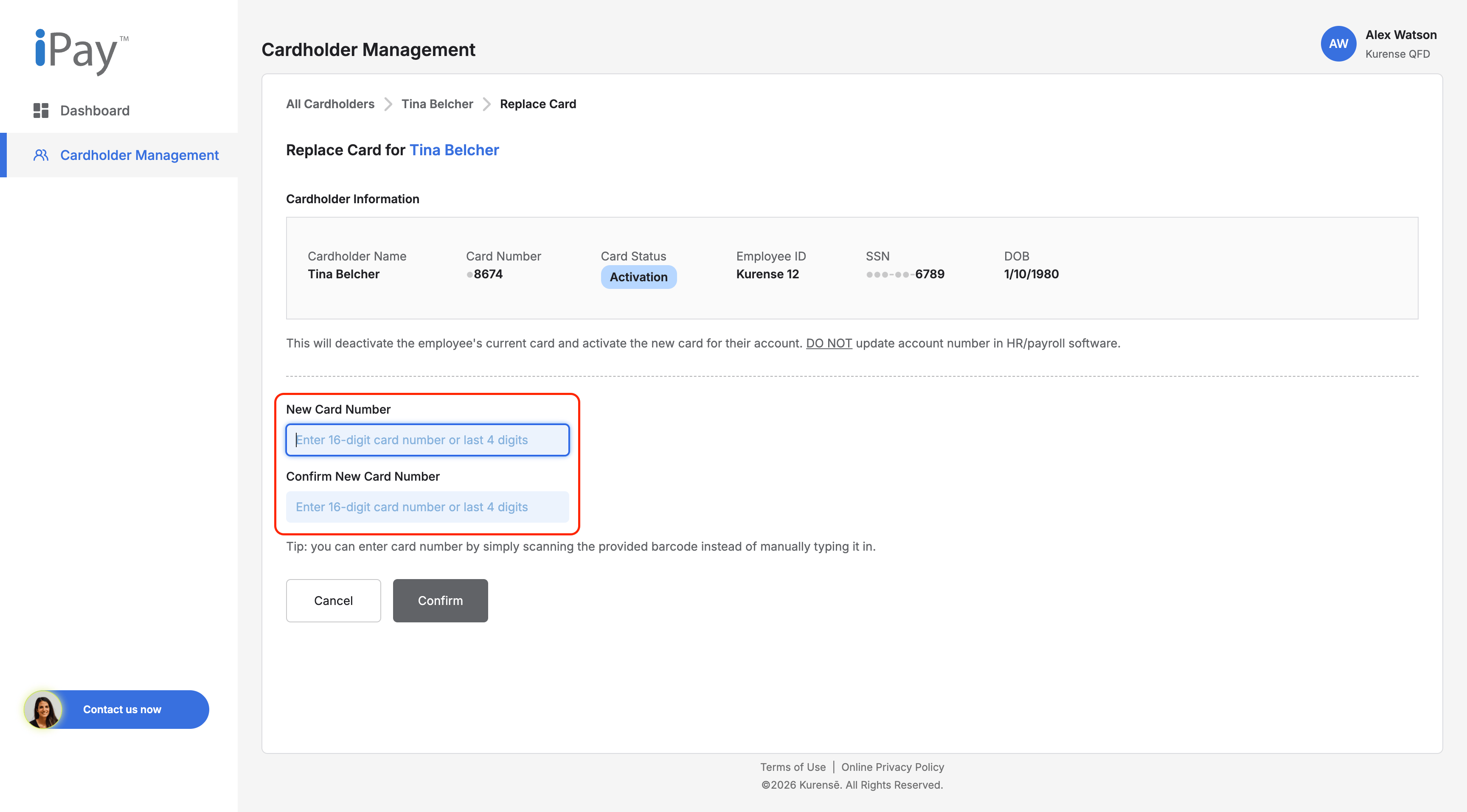
You can replace a card from the cardholder profile when the action is available.

Note

The Replace Card action may not be available for all cardholders or card statuses.

Steps

  1. Open the cardholder profile.
  1. Select Replace Card.
  1. Enter and confirm the new card number.
  1. Submit the request.

Export Cardholder Data

Steps

  1. Go to Cardholder Management.
  1. Select the All Cardholders tab.
  1. Use search, filters, or sorting to narrow the cardholder list, if needed.
  1. Select Export.

You can export cardholder data from the All Cardholders page when the export option is available.

Note

Exported cardholder data may not reflect real-time changes. Newly enrolled or updated cardholders may take up to 24 hours to appear in the export.

Still Need help?

We're here for you! For extra support, just click here!

Contact Us Now

iPay logo

Powered by

Kurense logo

Client Portal Help Center

Login

Help Center

Manage Cardholders

Manage Cardholders

View Cardholders

Sign in with your username/password or with biometrics.

Steps

  1. Log in to the Client Portal.
  1. Go to Cardholder Management.
  1. Select the All Cardholders tab.
  1. Review the list of available cardholders.
  1. Use search, filters, or sorting to narrow the list. You can search by cardholder name, employee ID, SSN or last four digits, or card number.

Note

The cardholders you can view may depend on your organization and user permissions.

View Cardholder Details

A cardholder profile gives you access to key cardholder information, account details, and available actions.

Steps

  1. Go to Cardholder Management.
  1. Select the All Cardholders tab.
  1. Search for the cardholder.
  1. Select the cardholder’s name.
  1. Review the cardholder profile to view cardholder information, account information, available actions, and deposit history, if available.

Note

Some sensitive information may be masked or require verification before it can be viewed.

Enroll New Cardholder

Steps

  1. Go to Cardholder Management.
  1. Select the All Cardholders tab.
  1. Select Enroll New Cardholder.
  1. Assign a card by entering and confirming either the 16-digit card number or the last 4 digits of the card number.You can also scan the card’s barcode instead of typing the number manually.
  1. Select Next.
  1. Enter the required cardholder information.
  1. Review all details to make sure they are correct.
  1. Submit the enrollment.

Note

Manually enrolled cardholders may not appear immediately in dashboard, report, or export views. Availability may depend on data refresh timing.

Use the manual enrollment workflow to assign a card and add a new cardholder directly in the Client Portal.

View Cardholder Card Information

Card information may be available in the cardholder profile. For security, card details are masked by default.

Note

Only view sensitive card information when it is needed for an authorized business purpose.

Steps

  1. Open the cardholder profile.
  1. Go to the Account Information section.
  1. Select Show Card Details.
  1. Review the card information.

Replace Card

You can replace a card from the cardholder profile when the action is available.

Note

The Replace Card action may not be available for all cardholders or card statuses.

Steps

  1. Open the cardholder profile.
  1. Select Replace Card.
  1. Enter and confirm the new card number.
  1. Submit the request.

Export Cardholder Data

Steps

  1. Go to Cardholder Management.
  1. Select the All Cardholders tab.
  1. Use search, filters, or sorting to narrow the cardholder list, if needed.
  1. Select Export.

You can export cardholder data from the All Cardholders page when the export option is available.

Note

Exported cardholder data may not reflect real-time changes. Newly enrolled or updated cardholders may take up to 24 hours to appear in the export.

Still Need help?

We're here for you! For extra support, just click here!

Contact Us Now

iPay logo

Powered by

Kurense logo

Client Portal Help Center

Login

Help Center

Manage Cardholders

Manage Cardholders

View Cardholders

The All Cardholders page lets you view and manage cardholders connected to your organization.

Steps

  1. Log in to the Client Portal.
  1. Go to Cardholder Management.
  1. Select the All Cardholders tab.
  1. Review the list of available cardholders.
  1. Use search, filters, or sorting to narrow the list. You can search by cardholder name, employee ID, SSN or last four digits, or card number.

Note

The cardholders you can view may depend on your organization and user permissions.

View Cardholder Details

A cardholder profile gives you access to key cardholder information, account details, and available actions.

Steps

  1. Go to Cardholder Management.
  1. Select the All Cardholders tab.
  1. Search for the cardholder.
  1. Select the cardholder’s name.
  1. Review the cardholder profile to view cardholder information, account information, available actions, and deposit history, if available.

Note

Some sensitive information may be masked or require verification before it can be viewed.

Enroll New Cardholder

Use the manual enrollment workflow to assign a card and add a new cardholder directly in the Client Portal.

Steps

  1. Go to Cardholder Management.
  1. Select the All Cardholders tab.
  1. Select Enroll New Cardholder.
  1. Assign a card by entering and confirming either the 16-digit card number or the last 4 digits of the card number.You can also scan the card’s barcode instead of typing the number manually.
  1. Select Next.
  1. Enter the required cardholder information.
  1. Review all details to make sure they are correct.
  1. Submit the enrollment.

Note

Manually enrolled cardholders may not appear immediately in dashboard, report, or export views. Availability may depend on data refresh timing.

View Cardholder Card Information

Card information may be available in the cardholder profile. For security, card details are masked by default.

Steps

  1. Open the cardholder profile.
  1. Go to the Account Information section.
  1. Select Show Card Details.
  1. Review the card information.

Note

Only view sensitive card information when it is needed for an authorized business purpose.

Replace Card

You can replace a card from the cardholder profile when the action is available.

Steps

  1. Open the cardholder profile.
  1. Select Replace Card.
  1. Enter and confirm the new card number.
  1. Submit the request.

Note

The Replace Card action may not be available for all cardholders or card statuses.

Export Cardholder Data

You can export cardholder data from the All Cardholders page when the export option is available.

Steps

  1. Go to Cardholder Management.
  1. Select the All Cardholders tab.
  1. Use search, filters, or sorting to narrow the cardholder list, if needed.
  1. Select Export.

Note

Exported cardholder data may not reflect real-time changes. Newly enrolled or updated cardholders may take up to 24 hours to appear in the export.

Still Need help?

We're here for you! For extra support, just click here!

Contact Us Now