
iPay logo

Login

Help Center

Deposit History

Deposit History

In this article

View Deposit History

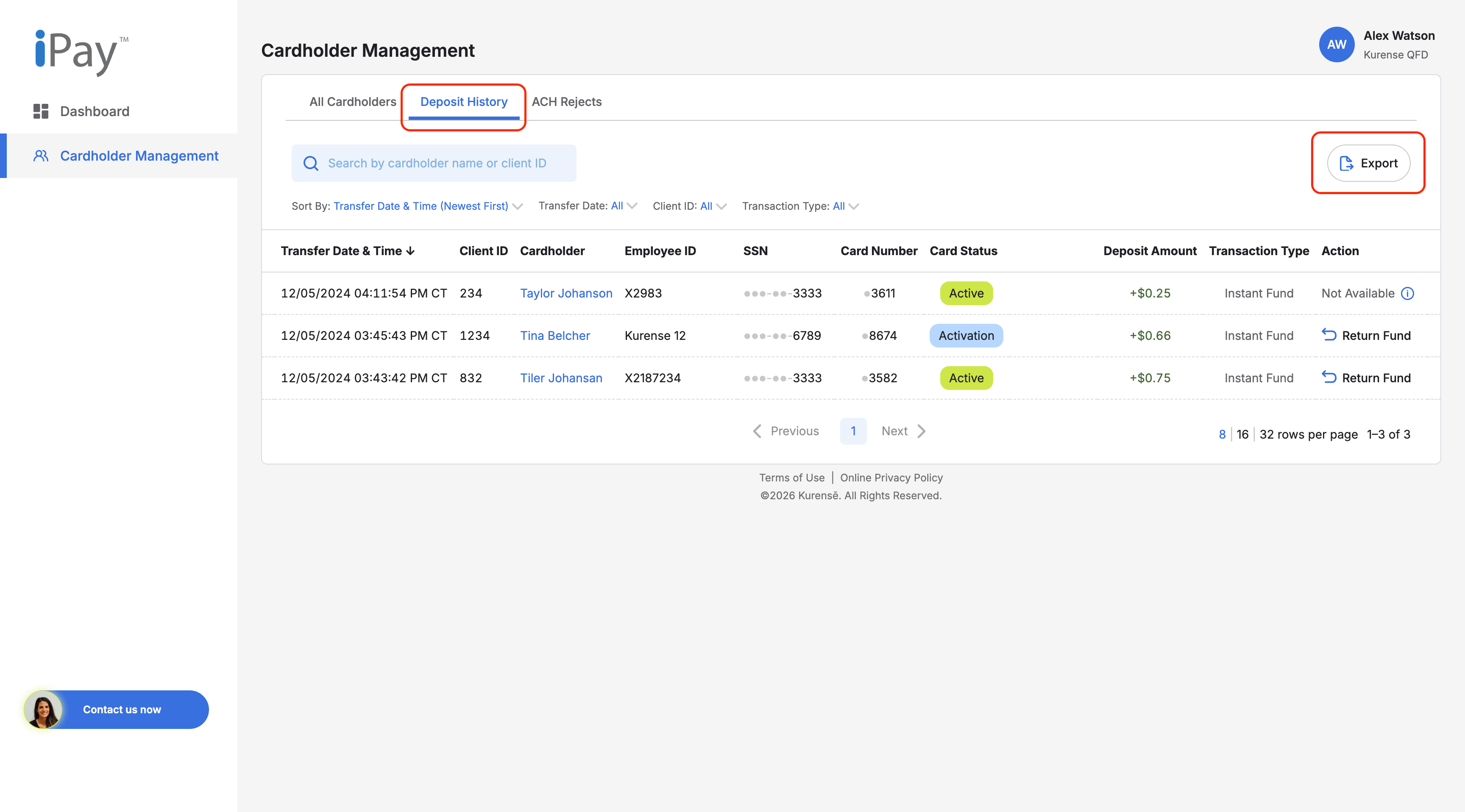
Deposit History allows you to review funding activity, including ACH and Instant Fund transactions.

Steps

  1. Log in to the Client Portal.
  1. Go to Cardholder Management.
  1. Select Deposit History.
  1. Review the list of deposit records.
  1. Use search or filters to narrow the results by date range, status, deposit type, cardholder, or other available criteria.

Tips

  • Use a wider date range if you cannot find a transaction.
  • Remove filters if the expected record does not appear.

Return ACH Deposit

Use the return workflow to return eligible ACH deposit amounts from a cardholder’s account back to your ACH payroll account.

Steps

  1. Go to Cardholder Management.
  1. Select Deposit History.
  1. Find the ACH deposit you want to return.
  1. Select Return.
  1. In the Return ACH Deposit popup, choose one of the following options:
    • Return all available funds: Returns the full amount currently eligible for return.
    • Return other amount: Allows you to enter a specific amount to return, if available.
  1. Review the available amount and return details.
  1. Select Confirm.
  1. ACH returns usually take 1–2 business days to be processed. The returned amount will be added back to your ACH payroll account.

What does “available funds for return” mean?

Available funds for return refers to the portion of the cardholder’s balance that is eligible to be returned. This amount may be different from the original Instant Fund amount and is typically based on the remaining balance in the cardholder’s account.

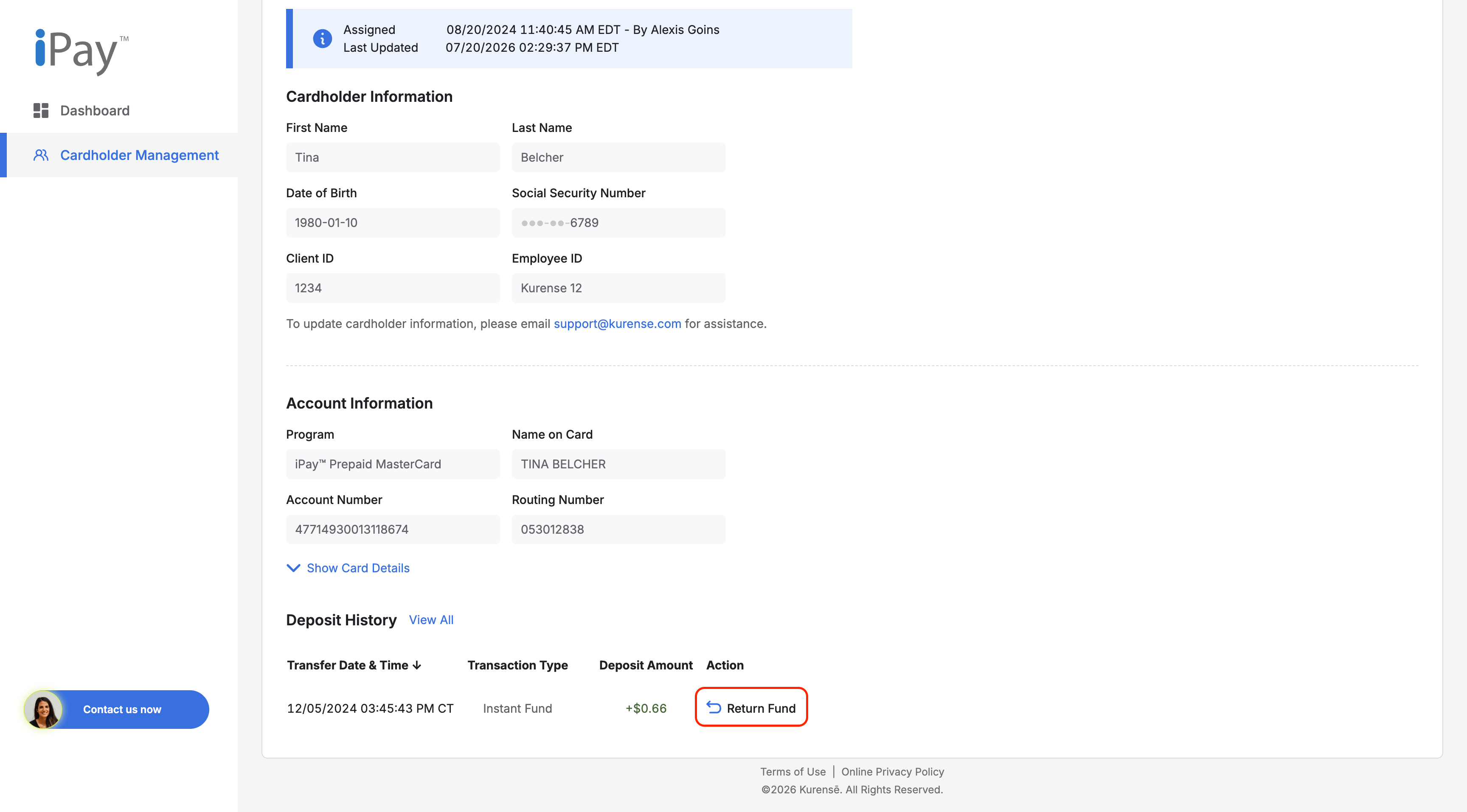
Return Instant Fund

Steps

  1. Go to Cardholder Management.
  1. Select Deposit History.
  1. Find the Instant Fund transaction you want to return.
  1. Select Return.
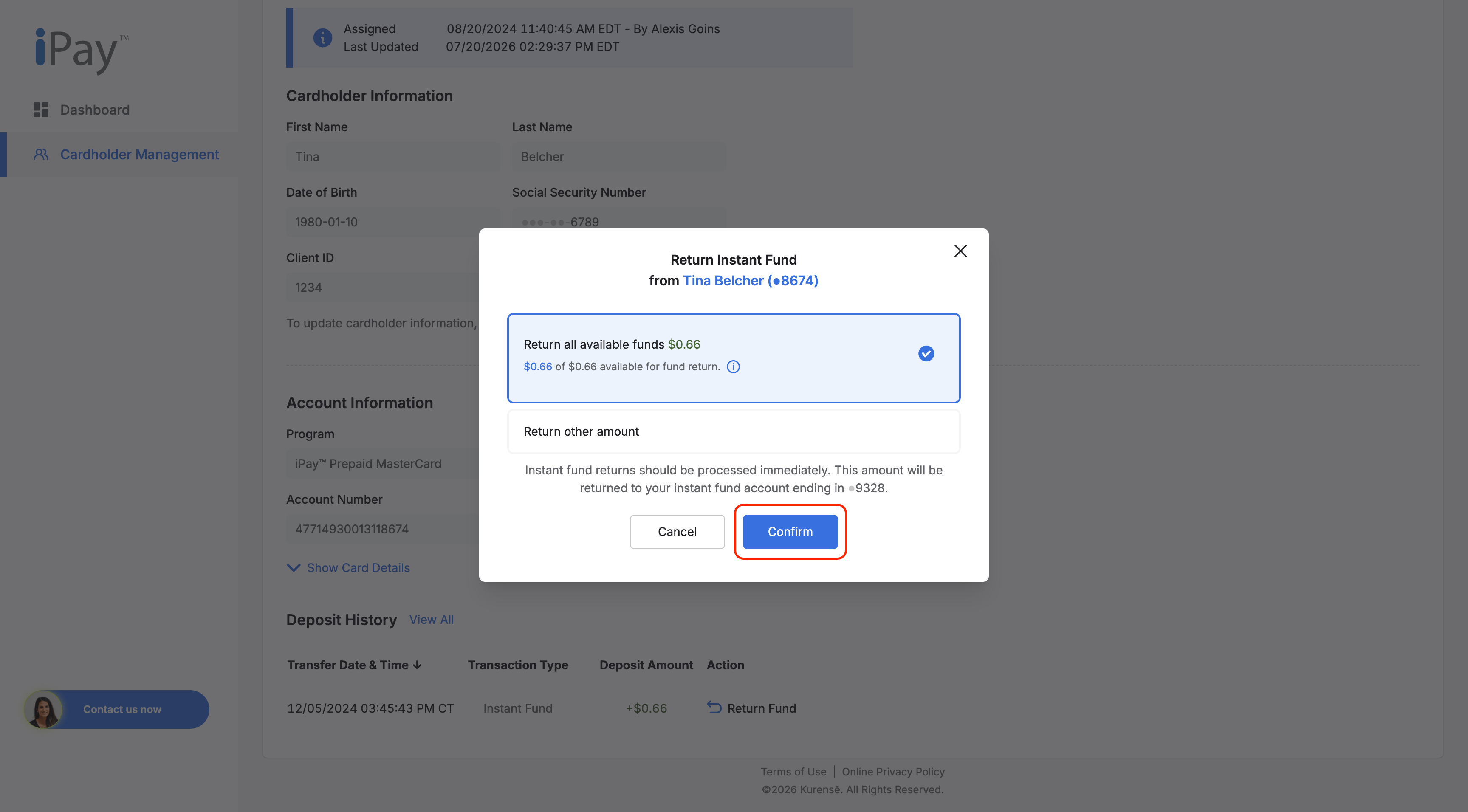
  1. In the Return Instant Fund popup, choose one of the following options:
    • Return all available funds: Returns the full amount currently eligible for return.
    • Return other amount: Allows you to enter a specific amount to return, if available.
  1. Review the available amount and return details.
  1. Select Confirm.
  1. Instant Fund returns should be processed immediately. The returned amount will be added back to your instant fund account.

Use the return workflow to return eligible Instant Fund amounts from a cardholder’s account back to your instant fund account.

What does “available funds for return” mean?

Available funds for return refers to the portion of the cardholder’s balance that is eligible to be returned. This amount may be different from the original Instant Fund amount and is typically based on the remaining balance in the cardholder’s account.

Instant Fund Cardholder

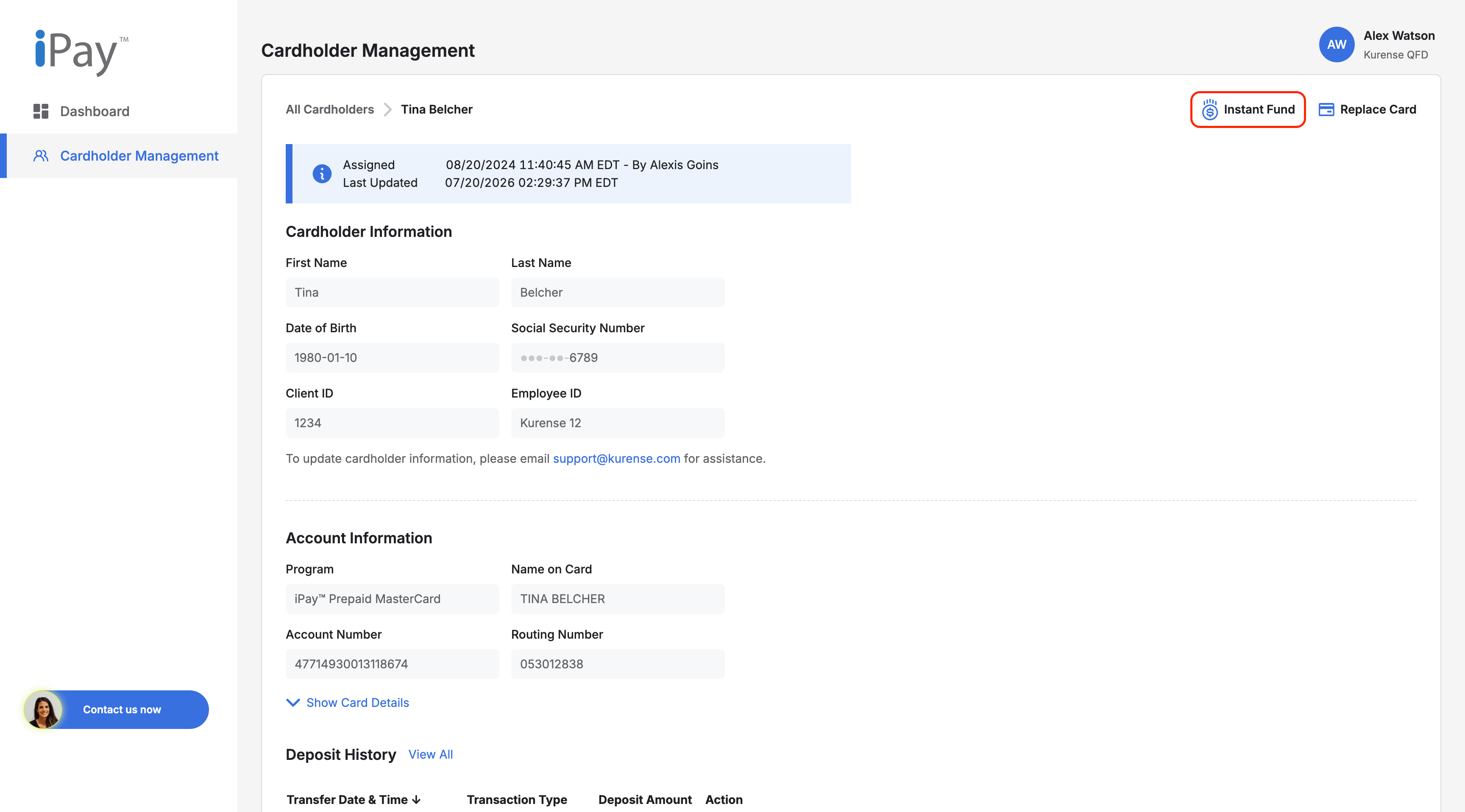
Use Instant Fund to send funds to an eligible cardholder.

Note

Instant Fund may not be available for all cardholders. Availability may depend on cardholder status, account restrictions, or organization settings.

Steps

  1. Open the cardholder profile.
  1. Select Instant Fund.
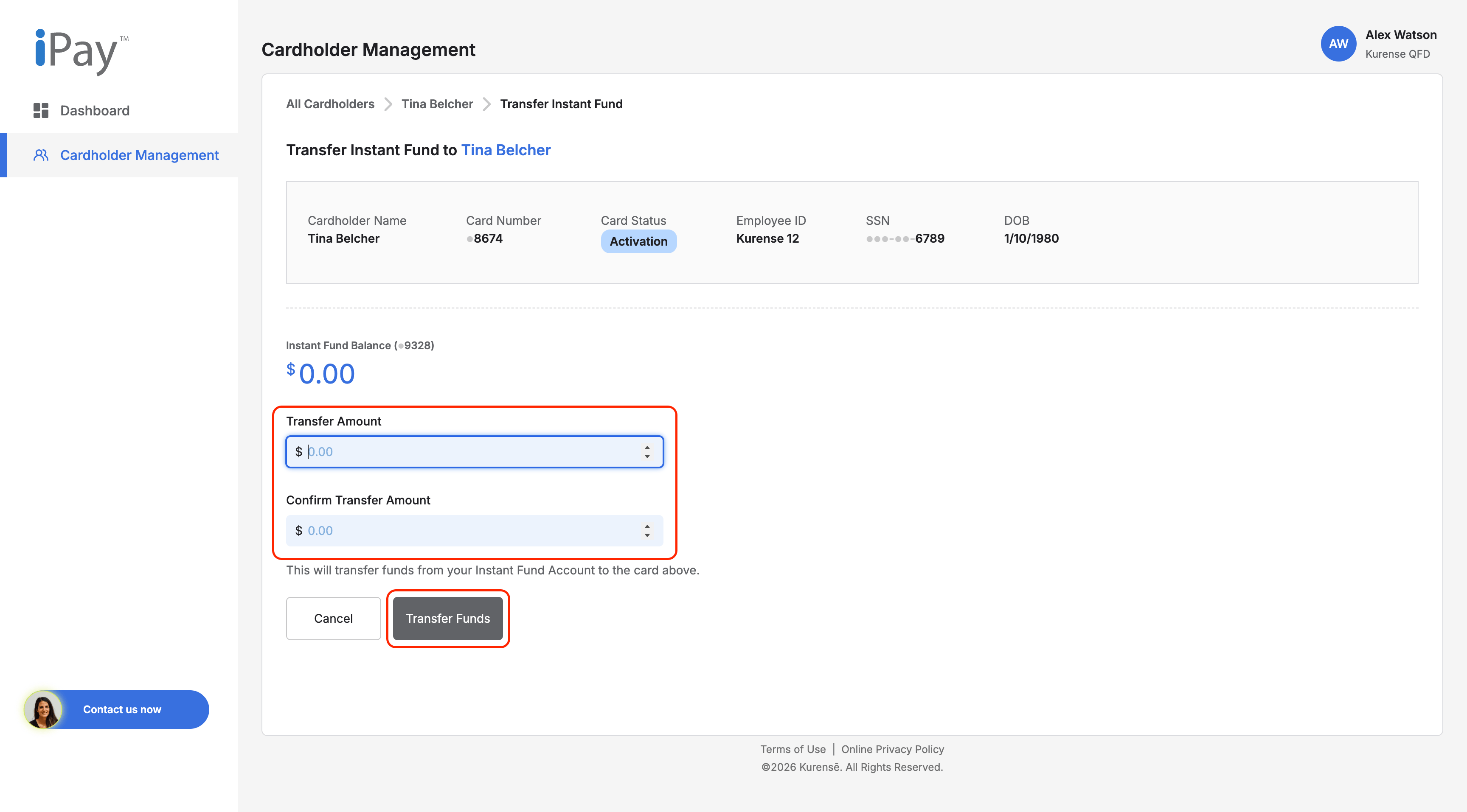
  1. Enter the funding amount.
  1. Review the transfer details.
  1. Confirm the instant fund.
  1. Check for confirmation that the transfer was submitted.

View ACH Rejects

ACH Rejects show ACH deposit activity that was not processed successfully. Use this section to review rejected ACH records and determine the next step.

What to Do Next

Review the reject reason and follow your organization’s internal process to resolve the issue. If you are unsure why the ACH was rejected, contact support for assistance.

Steps

  1. Go to Cardholder Management.
  1. Select ACH Rejects.
  1. Find the ACH reject record you want to review.
  1. Review the reject details.

Export Deposit History

You can export deposit records from the Deposit History page when the export option is available.

Steps

  1. Go to Cardholder Management.
  1. Select Deposit History.
  1. Use search or filters to narrow the deposit records, if needed.
  1. Select Export.

Export ACH Rejects

You can export deposit records from the Deposit History page when the export option is available.

Steps

  1. Go to Cardholder Management.
  1. Open the ACH Rejects section.
  1. Use search or filters to narrow the ACH reject records, if needed.
  1. Select Export.

Still Need help?

We're here for you! For extra support, just click here!

Contact Us Now

iPay logo

Powered by

Kurense logo

Client Portal Help Center

Login

Help Center

Deposit History

Deposit History

View Deposit History

Deposit History allows you to review funding activity, including ACH and Instant Fund transactions.

Steps

  1. Log in to the Client Portal.
  1. Go to Cardholder Management.
  1. Select Deposit History.
  1. Review the list of deposit records.
  1. Use search or filters to narrow the results by date range, status, deposit type, cardholder, or other available criteria.

Tips

  • Use a wider date range if you cannot find a transaction.
  • Remove filters if the expected record does not appear.

Return ACH Deposit

Use the return workflow to return eligible ACH deposit amounts from a cardholder’s account back to your ACH payroll account.

Steps

  1. Go to Cardholder Management.
  1. Select Deposit History.
  1. Find the ACH deposit you want to return.
  1. Select Return.
  1. In the Return ACH Deposit popup, choose one of the following options:
    • Return all available funds: Returns the full amount currently eligible for return.
    • Return other amount: Allows you to enter a specific amount to return, if available.
  1. Review the available amount and return details.
  1. Select Confirm.
  1. ACH returns usually take 1–2 business days to be processed. The returned amount will be added back to your ACH payroll account.

What does “available funds for return” mean?

Available funds for return refers to the portion of the cardholder’s balance that is eligible to be returned. This amount may be different from the original Instant Fund amount and is typically based on the remaining balance in the cardholder’s account.

Return Instant Fund

Steps

  1. Go to Cardholder Management.
  1. Select Deposit History.
  1. Find the Instant Fund transaction you want to return.
  1. Select Return.
  1. In the Return Instant Fund popup, choose one of the following options:
    • Return all available funds: Returns the full amount currently eligible for return.
    • Return other amount: Allows you to enter a specific amount to return, if available.
  1. Review the available amount and return details.
  1. Select Confirm.
  1. Instant Fund returns should be processed immediately. The returned amount will be added back to your instant fund account.

Use the return workflow to return eligible Instant Fund amounts from a cardholder’s account back to your instant fund account.

What does “available funds for return” mean?

Available funds for return refers to the portion of the cardholder’s balance that is eligible to be returned. This amount may be different from the original Instant Fund amount and is typically based on the remaining balance in the cardholder’s account.

Instant Fund Cardholder

Use Instant Fund to send funds to an eligible cardholder.

Note

Instant Fund may not be available for all cardholders. Availability may depend on cardholder status, account restrictions, or organization settings.

Steps

  1. Open the cardholder profile.
  1. Select Instant Fund.
  1. Enter the funding amount.
  1. Review the transfer details.
  1. Confirm the instant fund.
  1. Check for confirmation that the transfer was submitted.

View ACH Rejects

ACH Rejects show ACH deposit activity that was not processed successfully. Use this section to review rejected ACH records and determine the next step.

What to Do Next

Review the reject reason and follow your organization’s internal process to resolve the issue. If you are unsure why the ACH was rejected, contact support for assistance.

Steps

  1. Go to Cardholder Management.
  1. Select ACH Rejects.
  1. Find the ACH reject record you want to review.
  1. Review the reject details.

Export Deposit History

You can export deposit records from the Deposit History page when the export option is available.

Steps

  1. Go to Cardholder Management.
  1. Select Deposit History.
  1. Use search or filters to narrow the deposit records, if needed.
  1. Select Export.

Export ACH Rejects

You can export deposit records from the Deposit History page when the export option is available.

Steps

  1. Go to Cardholder Management.
  1. Open the ACH Rejects section.
  1. Use search or filters to narrow the ACH reject records, if needed.
  1. Select Export.

Still Need help?

We're here for you! For extra support, just click here!

Contact Us Now

iPay logo

Powered by

Kurense logo

Client Portal Help Center

Login

Help Center

Deposit History

Deposit History

View Deposit History

Deposit History allows you to review funding activity, including ACH and Instant Fund transactions.

Steps

  1. Log in to the Client Portal.
  1. Go to Cardholder Management.
  1. Select Deposit History.
  1. Review the list of deposit records.
  1. Use search or filters to narrow the results by date range, status, deposit type, cardholder, or other available criteria.

Tips

  • Use a wider date range if you cannot find a transaction.
  • Remove filters if the expected record does not appear.

Return ACH Deposit

Use the return workflow to return eligible ACH deposit amounts from a cardholder’s account back to your ACH payroll account.

Steps

  1. Go to Cardholder Management.
  1. Select Deposit History.
  1. Find the ACH deposit you want to return.
  1. Select Return.
  1. In the Return ACH Deposit popup, choose one of the following options:
    • Return all available funds: Returns the full amount currently eligible for return.
    • Return other amount: Allows you to enter a specific amount to return, if available.
  1. Review the available amount and return details.
  1. Select Confirm.
  1. ACH returns usually take 1–2 business days to be processed. The returned amount will be added back to your ACH payroll account.

What does “available funds for return” mean?

Available funds for return refers to the portion of the cardholder’s balance that is eligible to be returned. This amount may be different from the original Instant Fund amount and is typically based on the remaining balance in the cardholder’s account.

Return Instant Fund

Use the return workflow to return eligible Instant Fund amounts from a cardholder’s account back to your instant fund account.

Steps

  1. Go to Cardholder Management.
  1. Select Deposit History.
  1. Find the Instant Fund transaction you want to return.
  1. Select Return.
  1. In the Return Instant Fund popup, choose one of the following options:
    • Return all available funds: Returns the full amount currently eligible for return.
    • Return other amount: Allows you to enter a specific amount to return, if available.
  1. Review the available amount and return details.
  1. Select Confirm.
  1. Instant Fund returns should be processed immediately. The returned amount will be added back to your instant fund account.

What does “available funds for return” mean?

Available funds for return refers to the portion of the cardholder’s balance that is eligible to be returned. This amount may be different from the original Instant Fund amount and is typically based on the remaining balance in the cardholder’s account.

Instant Fund Cardholder

Use Instant Fund to send funds to an eligible cardholder.

Steps

  1. Open the cardholder profile.
  1. Select Instant Fund.
  1. Enter the funding amount.
  1. Review the transfer details.
  1. Confirm the instant fund.
  1. Check for confirmation that the transfer was submitted.

Note

Instant Fund may not be available for all cardholders. Availability may depend on cardholder status, account restrictions, or organization settings.

View ACH Rejects

ACH Rejects show ACH deposit activity that was not processed successfully. Use this section to review rejected ACH records and determine the next step.

Steps

  1. Go to Cardholder Management.
  1. Select ACH Rejects.
  1. Find the ACH reject record you want to review.
  1. Review the reject details.

What to Do Next

Review the reject reason and follow your organization’s internal process to resolve the issue. If you are unsure why the ACH was rejected, contact support for assistance.

Export Deposit History

You can export deposit records from the Deposit History page when the export option is available.

Steps

  1. Go to Cardholder Management.
  1. Select Deposit History.
  1. Use search or filters to narrow the deposit records, if needed.
  1. Select Export.

Export ACH Rejects

You can export ACH reject records from the ACH Rejects section when the export option is available.

Steps

  1. Go to Cardholder Management.
  1. Open the ACH Rejects section.
  1. Use search or filters to narrow the ACH reject records, if needed.
  1. Select Export.

Still Need help?

We're here for you! For extra support, just click here!

Contact Us Now